PDF Spark - Reader & Editor
- 4.4
- Rating
- 100.00K
- Installs
- Free
- Price
 Analysis by App-foxy
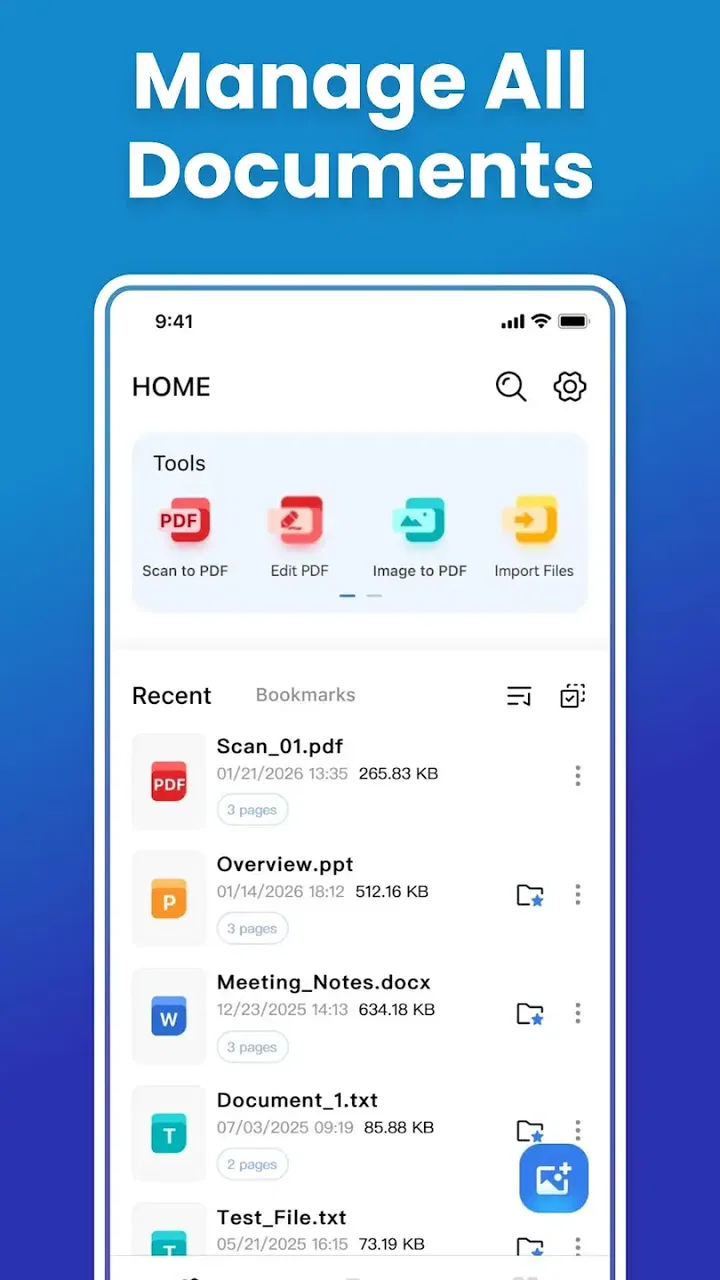
When a PDF arrives in a family group chat, the problem is rarely just opening it. Someone needs to check a form, another person wants to add a signature, and a third may need to scan a paper copy before sending everything back. PDF Spark - Reader & Editor is built around that practical chain of tasks rather than a single reading experience. I found it most useful as a straightforward productivity app for handling everyday documents on an Android device, especially when one phone or tablet is used by more than one person.
My first impression was that the app’s appeal comes from its compact purpose. It brings reading, editing, signing, and scanning into one place, so I do not have to jump between a PDF viewer, a scanner, and a separate signing tool for a simple household job. That does not make it a complete replacement for every specialist document service, but it does make routine paperwork feel less scattered.
How PDF Spark fits into shared household paperwork
A realistic example is a parent receiving a school form as a PDF while another adult is away from home. I can open the document, inspect the pages, add the required information, sign it, and scan an additional page if the school requests one. The value is not dramatic automation; it is the reduction in small interruptions. I can finish the task from the same device instead of remembering which app holds each part of the process.
You May Also Like

 Pandora - Music & Podcasts
Pandora’s Music Is Easy to Start, but Harder to Recover
Pandora’s strength is its low-effort path from a seed to a station. Its weak spot is how much confidence it asks you to place in connection, setup, and quiet recovery.

 8 Ball Pool
 Is Built on Rivalries, Rematches, and Routine
A close look at the rivalries, rematches, shared routines, and unanswered safety questions that turn a quick pool match into a persistent mobile community.

 Samsung Music
’s Quiet Strength Is Playing What You Already Own
Its reach comes less from spectacle than from dependable access to a personal library. That simplicity is both the app’s strongest retention engine and its ceiling.

 AccuWeather: Weather Radar
AccuWeather Review: A Quick, Clear Forecast for Everyday Decisions
For everyday plans, the best forecast is the one you can understand quickly. AccuWeather makes rain timing, radar, and local conditions easy to act on, with a few trade-offs.

 Hill Climb Racing
Why Hill Climb Racing Still Turns Crashes Into One More Run
A tiny car, a bumpy hill and one more upgrade: Hill Climb Racing keeps resurfacing because its simple chaos makes every near-miss feel personal.

 AliExpress - Shopping App
AliExpress Makes Global Shopping Feel Personal, but Shoppers Bear the Risk
AliExpress turns a global marketplace into a pocket-sized discovery engine. Its reach is useful, its shopping loop compelling, and its trade-offs easy to miss.
More From Our News Desk
View All News


This shared-device angle also reveals an important boundary: the app is a document utility, not a family organization system. I would not treat it as a place for household scheduling, delegated approvals, or managed profiles. Its job is to help with the file in front of me. Coordination still happens through the family’s normal messaging, email, or cloud habits.
That narrow focus is a strength when the goal is quick completion. A teenager can scan a signed permission sheet, an adult can review an invoice, and an older relative can open a document without learning several unrelated tools. The experience is clearest when each person handles a specific file and then sends the finished result through the usual channel.
It is less suitable when several people need to edit the same document simultaneously or maintain a carefully controlled shared archive. In that situation, a dedicated cloud workspace or office suite may be better because collaboration, version history, and access management matter more than having basic PDF actions together.
Starting with a clean document routine
PDF Spark is developed by ApHouseBD and sits in the productivity category. It is free to use, carries an Everyone age rating, and runs on Android from version 8.0 onward. Those details make it easy to consider for a mixed household, since an older spare phone or a shared tablet may still meet the basic system requirement.
The current release is version 1.0.1, so I approached it as a focused utility rather than a mature document-management platform. That distinction matters. I would install it for immediate PDF tasks, but I would still keep an established backup location for important records. A useful routine is to create or receive the file, complete the work, confirm that the final copy opens correctly, and then send or store it deliberately.
For a shared device, I would begin by agreeing on a simple naming habit. A filename that includes the person, purpose, and status is much safer than leaving several files with vague names such as “document” or “scan.” This is not a special feature of the app, but it makes the app’s reader, editor, and scanner functions far easier to use when multiple household members take turns.
I also recommend deciding who is allowed to sign before opening the document. A signature field can look like a small editing step, but it represents a real commitment. On a device used by children and adults, the technical ability to edit a PDF should never be confused with permission to approve one.
Keeping personal files separate on one device
Household use requires more care than individual use. If several people share a tablet, I would avoid leaving tax papers, medical documents, school records, or identity forms open in the recent-document area. The app can help process those files, but a shared device changes the privacy situation. Screen visibility, local storage, notifications, and the next person who opens the app all become part of the workflow.
My practical approach is to process one person’s documents at a time, close the file when finished, and move the completed copy to the intended private location. I would also avoid handing the device to a child while an adult’s sensitive document is still visible. PDF Spark is appropriate for document work, but it should not be mistaken for a household account-boundary tool.
This is one of the most important trade-offs for families. The free price removes a barrier to trying it, and the Everyone rating makes it approachable, but neither point guarantees privacy separation. If the device has separate user profiles, I would use them. If it does not, simple physical habits—locking the screen, clearing the workspace, and checking the recipient before sharing—matter more than the app label.
The same advice applies to signatures. I would let a child use the reader or help scan a worksheet, but I would keep signing decisions with the responsible adult. That division is sensible even when everyone in the home can technically access the same controls.
Reading and editing without overcomplicating the job
The reading side is the natural starting point. I use it to inspect a document before making changes, which is more important than it sounds. A quick review can reveal whether the file is complete, whether a page is missing, or whether the signature belongs on a different section. Editing first and checking later creates avoidable mistakes.
For small corrections, an all-in-one tool is more convenient than opening a full desktop-style office application. I can stay inside the PDF workflow instead of converting the file, changing it elsewhere, and converting it back. That is particularly useful for forms, notices, receipts, and short documents that do not justify a complicated setup.
Still, I would not choose it for heavy layout work. PDFs are designed to preserve a finished page, and editing them can become awkward when the document contains complex columns, unusual fonts, or tightly positioned elements. If I needed to rebuild a long report, manage tracked changes, or collaborate on original text, I would use the source document or a dedicated office editor instead.
A useful household tip is to read the entire form before editing any field. When one person fills the first page and another later discovers an instruction on the last page, the file may need to be redone. The app makes the actions available, but good document order still comes from the user.
Signing: convenient, but not a substitute for judgment
The signing function is one of the reasons I would keep this app installed. Many everyday documents do not require a long signing ceremony; they simply need the authorized person to place a signature and return the PDF. Having that action beside the reader and editor reduces the temptation to print, sign, photograph, and send a blurry image.
I would treat every signature as a final review point. Before signing, I check the recipient, the document version, the filled fields, and any pages that might have been added or removed. On a shared device, I also confirm that the person signing is the correct household member. This is a simple safeguard against the most serious kind of convenience-related error.
The app is a good fit when the document owner understands what they are approving and the recipient accepts a digitally signed PDF. It is not the right choice when an organization requires a particular identity-verification process, certificate, or formal signing platform. In those cases, the receiving institution’s requirements should decide the tool, not the convenience of having a signature button nearby.
I also prefer to keep an unsigned original until the signed copy has been checked. That gives the household a clean reference if a field was missed or the wrong version was used. The extra step is worthwhile for school, rental, employment, or financial paperwork.
Scanning paper documents into the same workflow
Scanning is especially useful in a home where paperwork still arrives on paper. A parent may receive a printed notice, a student may need to return a signed sheet, or an older family member may need to send a form to an office. Instead of taking a casual photo and hoping the text is readable, I can use the scanning part of the workflow and then continue with the resulting document.
The best results depend on the setup around the phone. I place the page on a flat, contrasting surface, use even light, keep the camera parallel to the paper, and check every edge before saving. These habits are more valuable than rushing through the capture. A scan that cuts off a signature or hides a date is not useful simply because it was created quickly.
For several pages, I would arrange them in order before sending the file. This is a non-obvious point that saves time: the recipient usually cares about the complete sequence, not just whether each page is technically present. I would also open the finished PDF and inspect the last page, since that is where an incomplete scan often becomes apparent.
Scanning is not a reason to abandon a proper scanner for large batches, delicate originals, or archival work. A phone-based workflow is best for occasional household documents. If I had a stack of forms every week, a desktop scanner or a more specialized scanning service would likely be faster and more consistent.
Coordinating tasks when several people are involved
PDF Spark helps with the actions, but it does not replace communication between the people involved. I find it useful to assign the workflow in plain language: one person scans, one person checks the details, and the authorized adult signs. That avoids the common problem where everyone assumes someone else completed the final step.
A shared-device routine can be as simple as leaving the file in a clearly named “to review” location, then moving it to “ready to send” only after checking it. The exact folders depend on the device, but the principle is valuable: status should be visible from the filename or location, not held only in someone’s memory.
I would also send a short message with the document’s purpose rather than attaching a file without context. “Signed school form” is easier for a recipient to understand than an automatically generated scan name. This matters when several household members send documents from the same account or device.
There is a limit, though. If coordination requires comments, assignments, simultaneous editing, or a permanent audit trail, this app is not enough on its own. Its advantage is the short path from document to completed document, not team management. A collaborative office platform is the better option for shared projects, while PDF Spark suits the handoff of finished paperwork.
Age, trust, and sensible access
The Everyone rating makes the app approachable for general household use, but age suitability is not the same as decision-making authority. A child can reasonably read a worksheet, scan a permission slip, or help locate a page. That does not mean the child should approve a purchase, sign a contract, or send a private record.
I would explain the difference between editing and authorization before sharing the device. Editing changes the file; signing confirms something about the person or household. That small lesson is useful because the app’s convenience can make a serious action feel ordinary.
Trust also applies to recipients. Before sharing a completed PDF, I check the address or chat destination and make sure the file does not include an unnecessary page. A household often combines documents for convenience, but sending extra personal information can create a bigger problem than the original paperwork.
For older relatives, the app may be helpful because the workflow is concentrated in one place. I would still prepare a short routine: open, inspect, edit only the required fields, sign only when authorized, and check the final file. Fewer app switches can reduce confusion, but clear instructions remain important.
Where it stands beside familiar alternatives
Compared with a basic PDF reader, PDF Spark is more useful when the job includes a signature or a scan. A reader is enough for contracts, manuals, and notices that only need viewing, but it forces me to find another tool when the document must be returned. The all-in-one approach is the stronger choice for occasional, mixed tasks.
Compared with a full office suite, it is likely to feel lighter and more direct for finished PDFs. An office suite is better when I am writing from scratch, managing spreadsheets, or collaborating on a document before export. I would choose the office suite for creation and teamwork, then use PDF Spark for the final inspection, signing, or scan-based handoff.
Compared with a dedicated scanner app, its advantage is continuity. A specialist scanner may offer a deeper capture workflow, while this app keeps scanning close to reading and editing. For a single page or a short household packet, that convenience wins. For repeated scanning, advanced image cleanup, or formal archiving, the specialist tool may justify its extra focus.
Its free availability also makes experimentation easy, but I would not select an app solely because it costs nothing. The real question is whether the combined workflow saves enough time without creating confusion about file ownership and privacy. In my experience, it does for ordinary paperwork, provided I keep the boundaries clear.
My household verdict after using the complete workflow
PDF Spark is a sensible choice for Android users who want one practical place to read, adjust, sign, and scan PDFs. Its strongest use is not advanced document production; it is the everyday moment when a file arrives, needs a small amount of work, and must go back out without a chain of unrelated apps.
The app has reached over fifty thousand installs and holds a 4.3 average from fifty-one ratings, which suggests a modest but encouraging user base. I would read that as a reason to try it, not as proof that it will suit every workflow. The experience is most convincing when the document is short, the edits are limited, and the person completing the task understands the file’s purpose.
My main reservation is about expectations. Shared-device households should not assume that a productivity app automatically creates separate accounts, private workspaces, or family permissions. I would use it alongside careful storage and communication habits, especially for sensitive paperwork. For complex collaboration, strict compliance signing, or serious archiving, I would choose a more specialized service.
For a family that regularly passes around forms, receipts, school papers, and signed notices, I would recommend giving it a try. Keep the original, name files clearly, review every page before signing, and confirm the recipient before sending. With those habits, PDF Spark - Reader & Editor becomes a useful household tool: not a complete document office, but a convenient bridge between paper, PDF, and the person who needs to finish the job.
FAQs for PDF Spark - Reader & Editor
01What features does PDF Spark offer for reading and editing PDFs?
PDF Spark provides a comprehensive suite of tools for both reading and editing PDF documents. Users can easily highlight text, add annotations, and fill out forms. The app also supports merging multiple PDFs and converting other file formats into PDFs, making it a versatile tool for both casual users and professionals.
02Is PDF Spark available for both Android and iOS devices?
Yes, PDF Spark is designed to be compatible with both Android and iOS platforms. This cross-platform availability ensures that users can enjoy seamless PDF reading and editing experiences on their smartphones and tablets, regardless of the operating system.
03Does PDF Spark require an internet connection to function?
PDF Spark's core features, such as reading and basic editing, work offline. However, certain advanced functionalities, like cloud integration for storage and sharing, may require an internet connection. This allows users to access and sync their documents across devices easily when online.
04Are there any in-app purchases or subscription fees for PDF Spark?
PDF Spark offers a free version with basic features, but users may encounter in-app purchases or subscription options for advanced features. These could include enhanced editing tools, additional cloud storage, or ad-free usage, providing flexibility based on user needs and preferences.
05How user-friendly is the interface of PDF Spark?
PDF Spark boasts a user-friendly interface designed for intuitive navigation. The app features a clean layout with easily accessible tools, allowing users of all experience levels to quickly learn and utilize its functionalities. This focus on simplicity ensures efficient PDF management without a steep learning curve.
Pros
- User-friendly interface for quick navigation.
- Supports a wide range of PDF file types.
- Fast and efficient document rendering.
- Offers annotation and editing tools.
- Offline access for reading PDFs anywhere.
Cons
- Limited advanced editing features.
- Ads can be intrusive during use.
- Occasional lag on large documents.
- In-app purchases for premium features.
- No cloud integration for auto-sync.

PDF Spark - Reader & Editor
Gallery